

Monthly
To get started, no commitment.
€59/ month
Billed €59 every month
Tools included in the subscription
Education
The Hub's Trading Desk is a terminal with the charts and prices of your MetaTrader 5 or cTrader account, and the ability to open, modify and close real trades: lots or risk in %, stop and take profit, pending orders, automatic management, price alerts. With the Copier replicating orders on your other accounts.
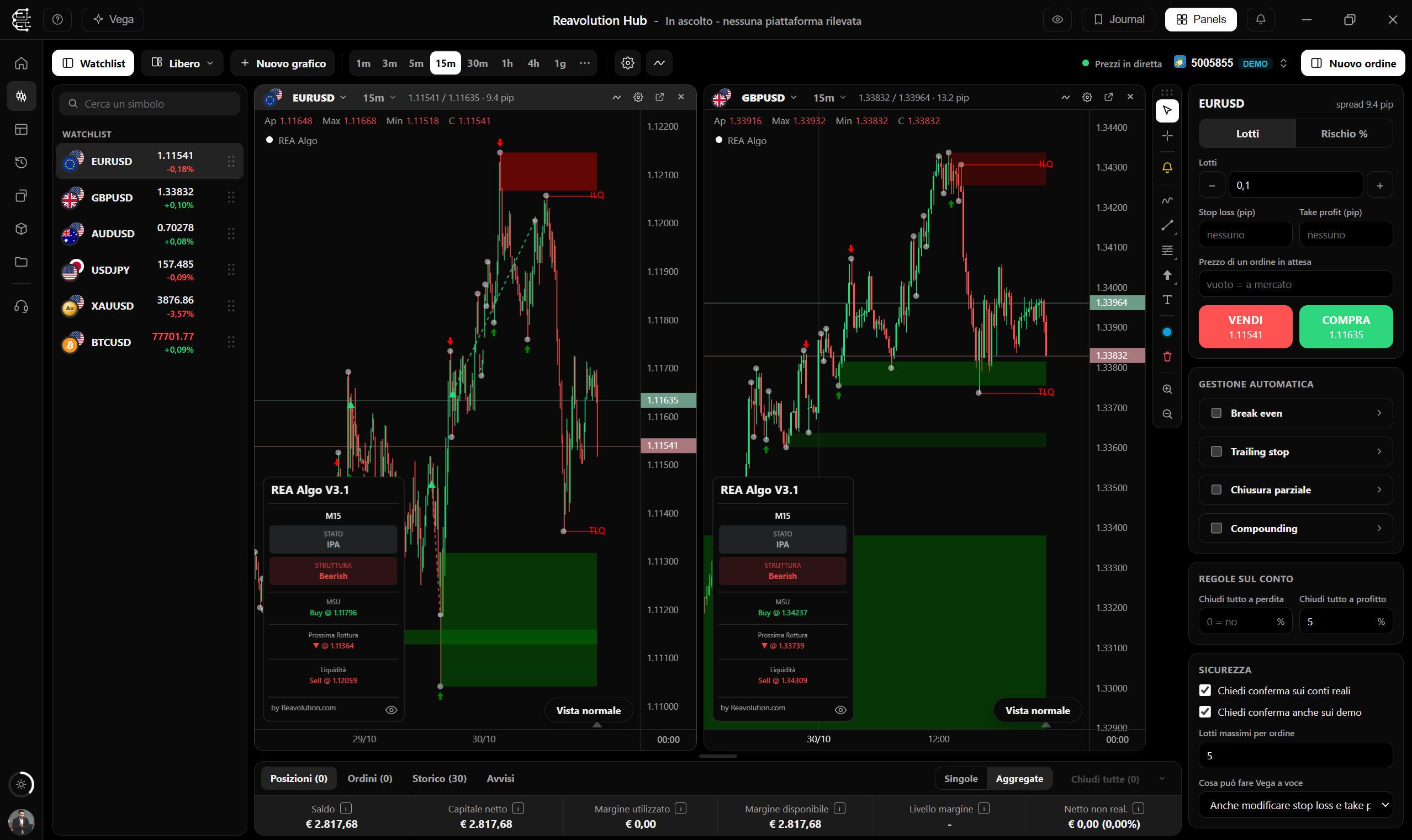
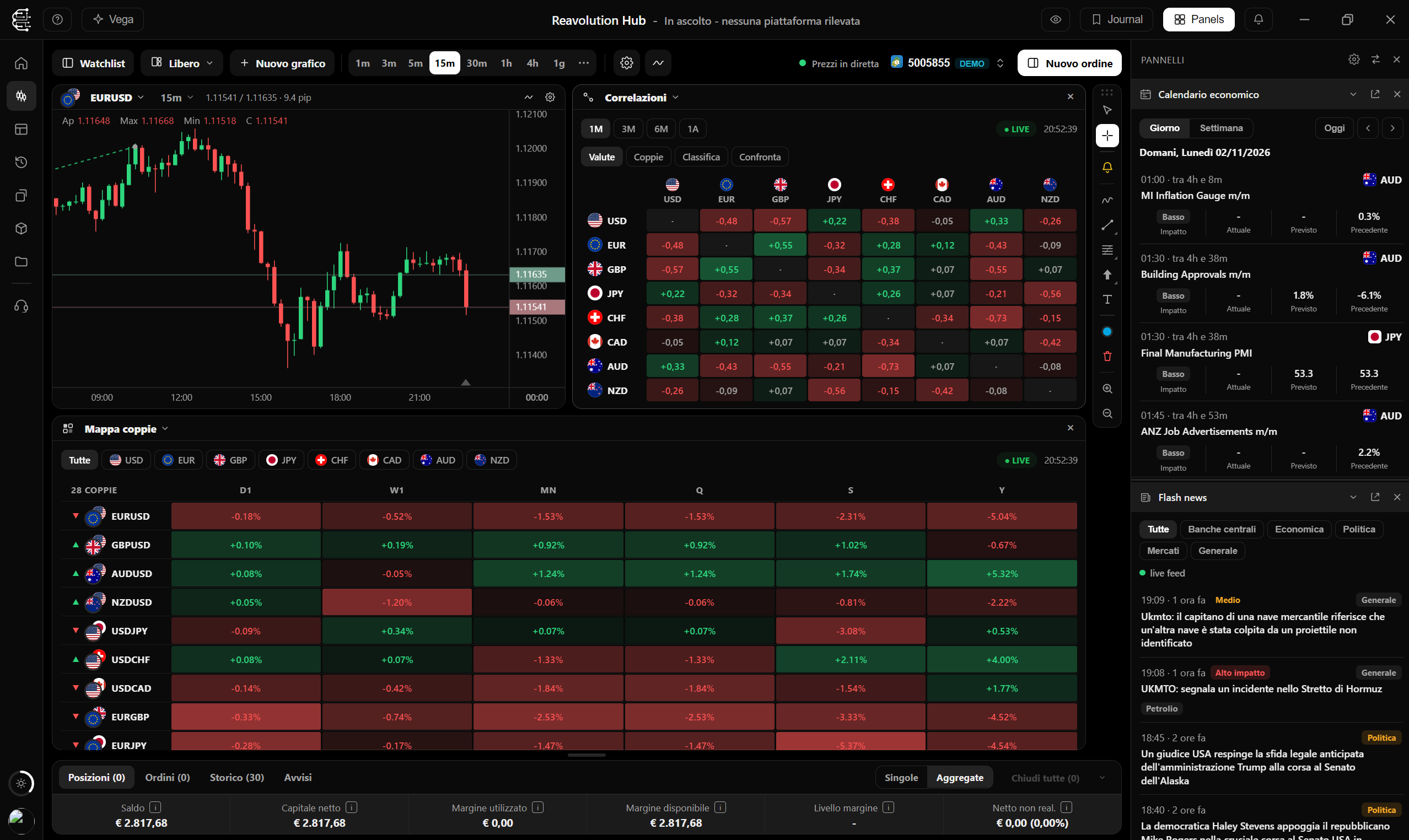
Everything you need to read the market and trade is on the same page, connected to your account's terminal.
Candles come from the terminal of the account you choose and move with the live price. The watchlist shows price and daily change: one click switches the symbol, a double click opens a new chart, and you reorder it as you like.
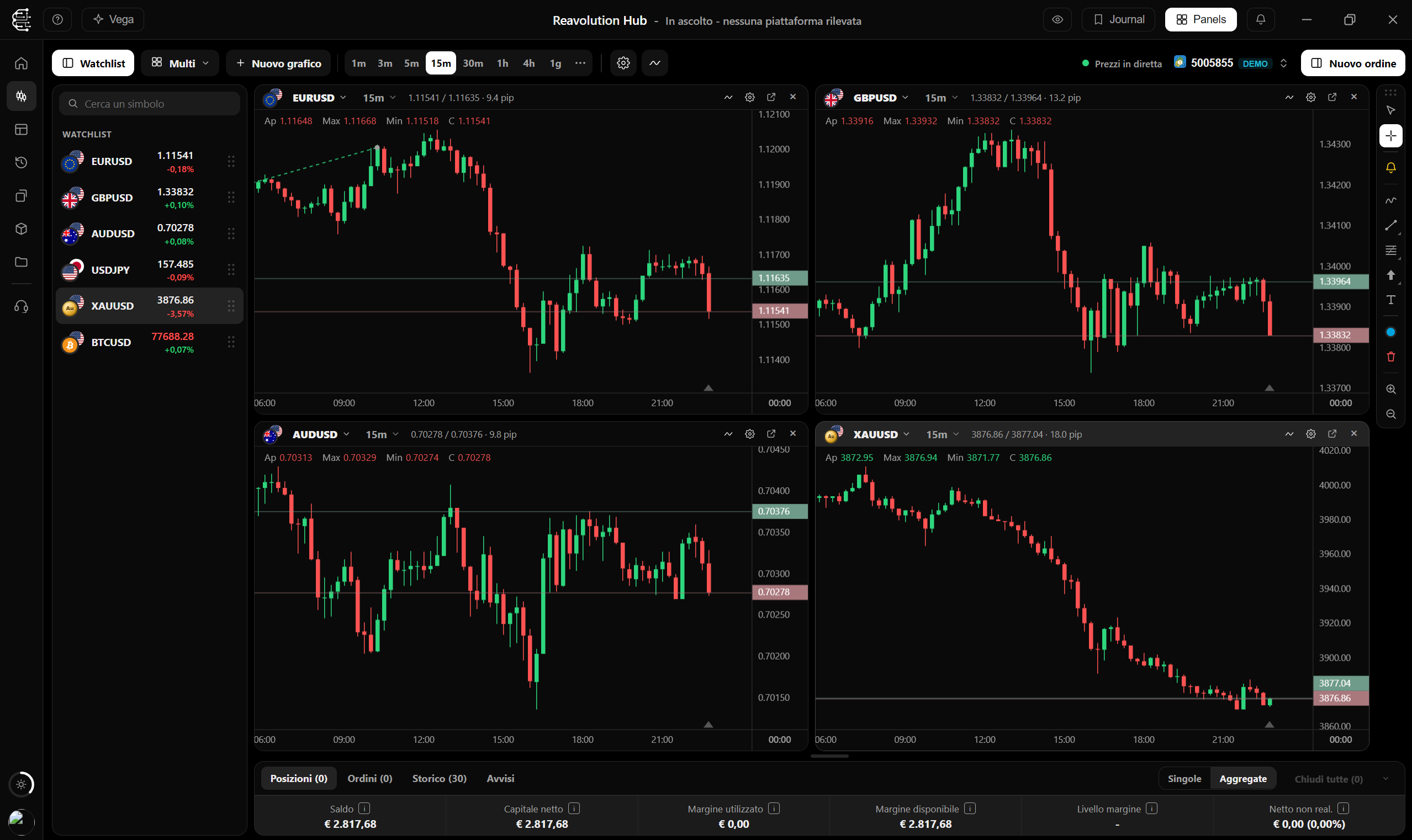
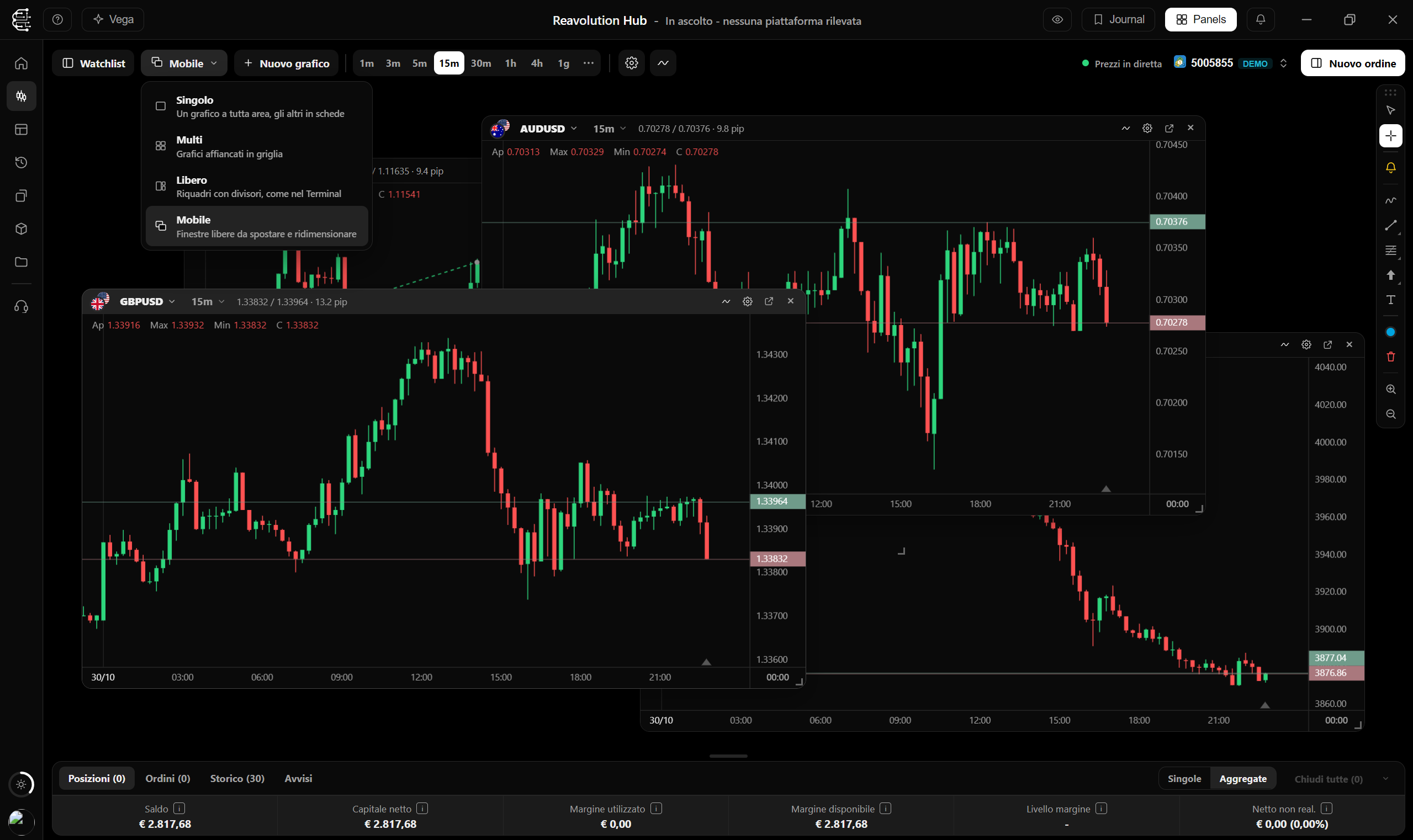
Single with tabs like a browser, Multi in a grid, Free with rows and columns on draggable dividers, Floating with windows to move and resize. Any chart can be detached into its own window with every control.
Choose lots or a percentage of your balance as risk, set stop loss and take profit in pips, price or R, and press BUY or SELL. For a pending order drag the button onto the chart and drop it at the price you want: the Hub creates the right limit or stop.
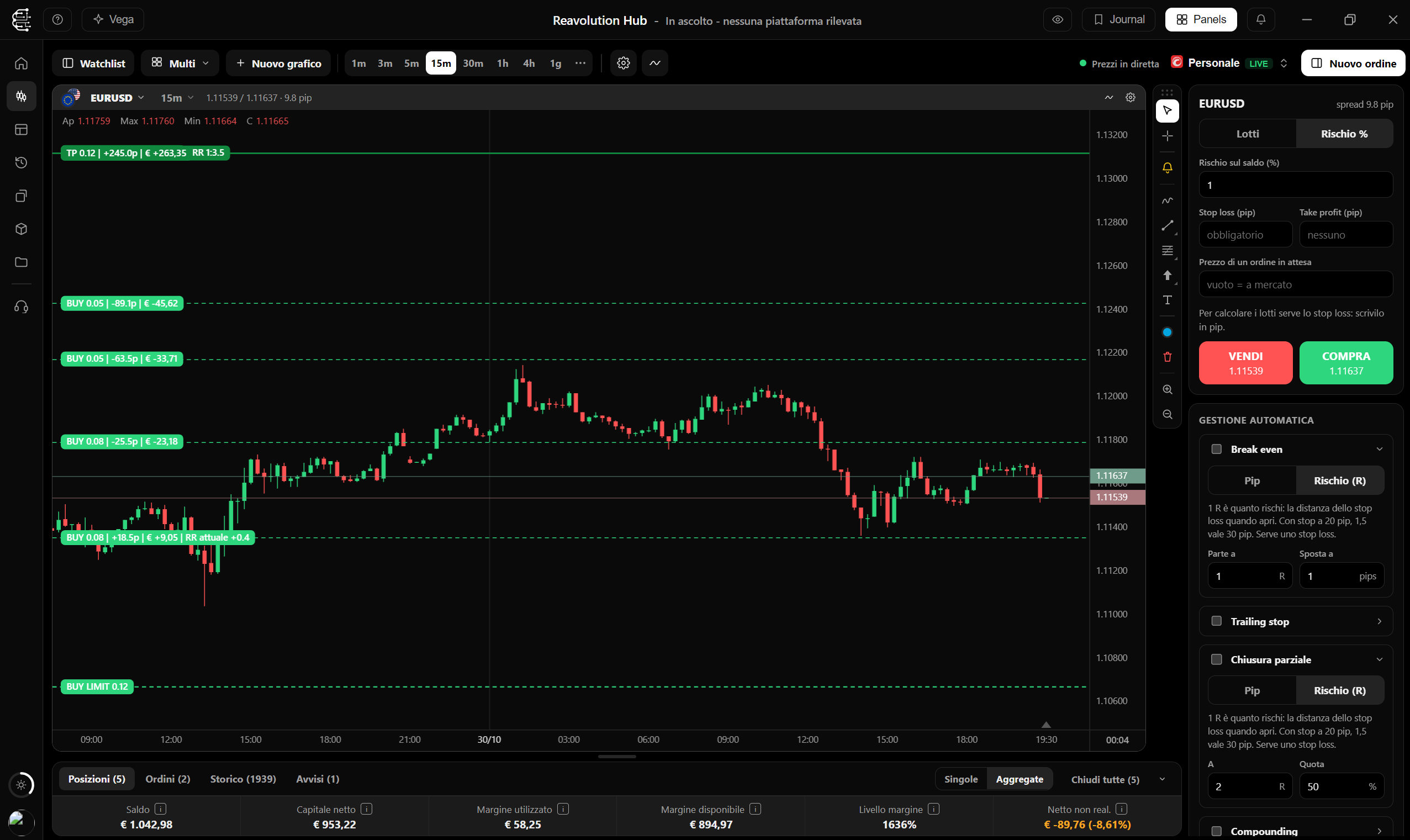
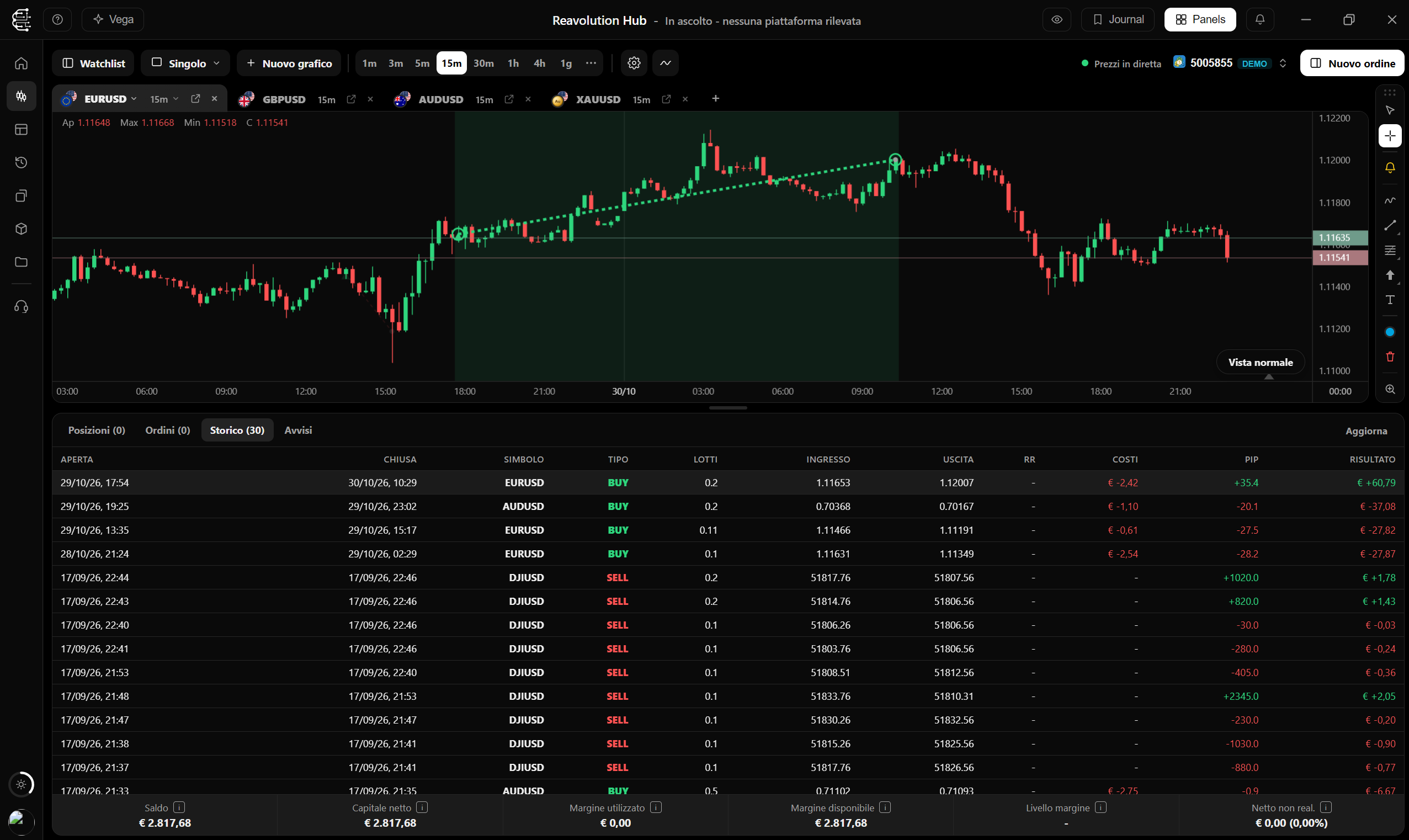
Below you find open positions (one row each, or aggregated by symbol and direction), pending orders and the history with open, close, pips and net result. With the pencil you open a panel to change stop, take profit, and for orders also price and lots.
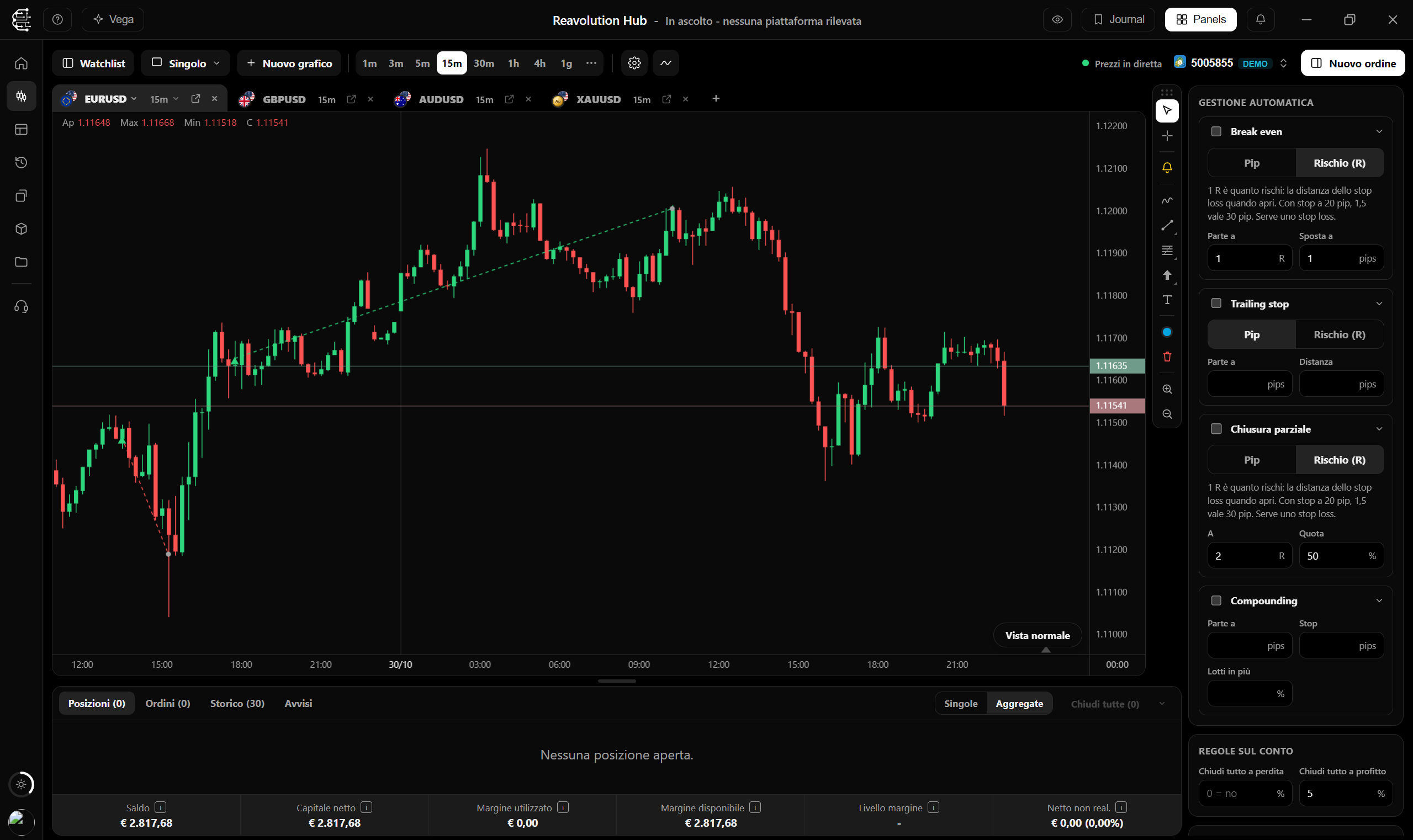
You enable automatic management on the order or position: break even, trailing stop, partial close and compounding, in pips or risk multiples. Plus two account rules: close everything at a loss or profit in percent.
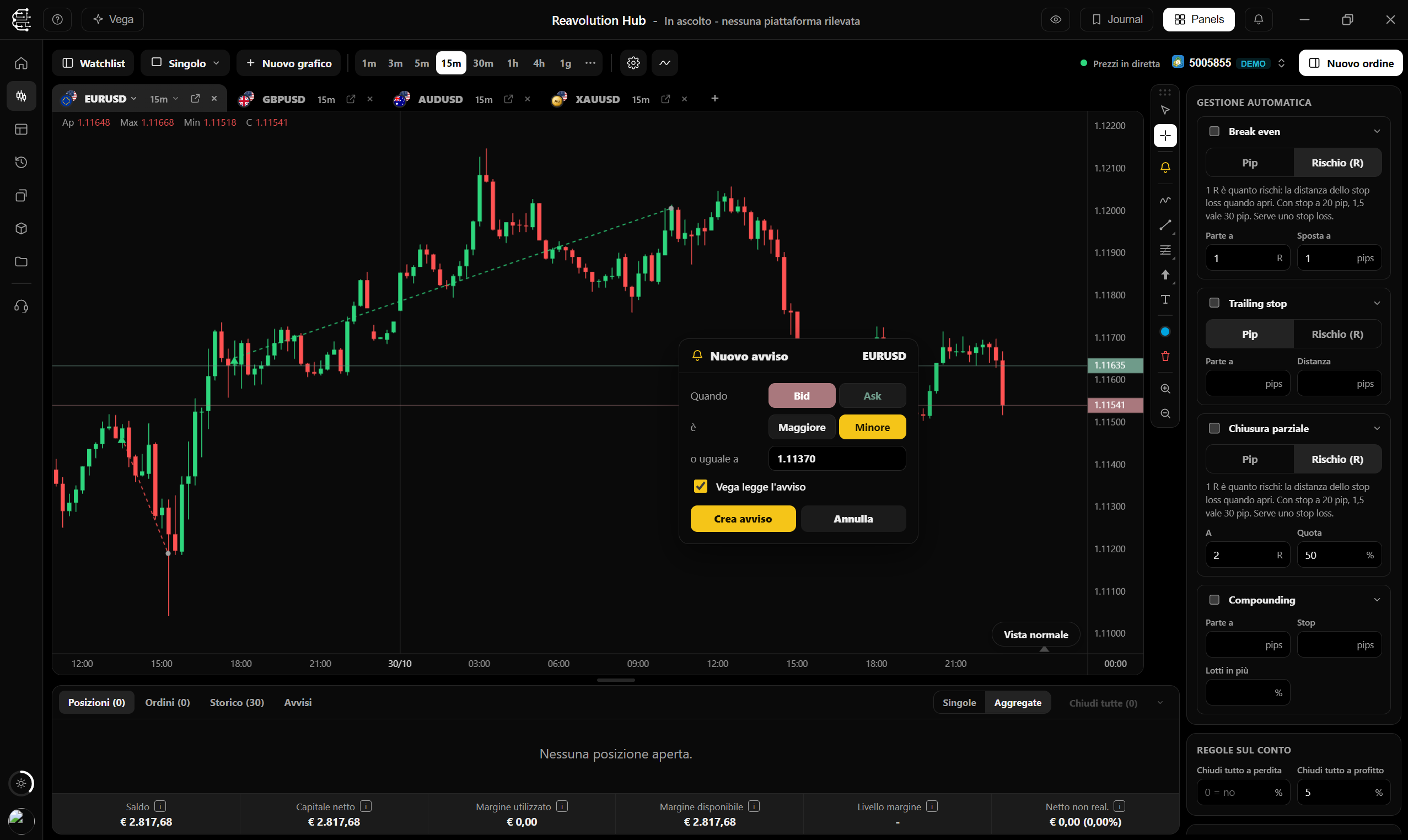
With the bell you click on the chart where you want to be alerted: Bid or Ask, above or below, and whether Vega should read the alert to you. It appears as a yellow line you move with the mouse. When it triggers you get a notification, even if you are on another page.
From the New chart menu pick “Fill with a tool”: Economic Calendar, Flash news, Calculators, COT Flow, Market analyzer, ETF Rotation, currency strength, pairs map, highs and lows or correlations become a cell of the layout, in any arrangement.
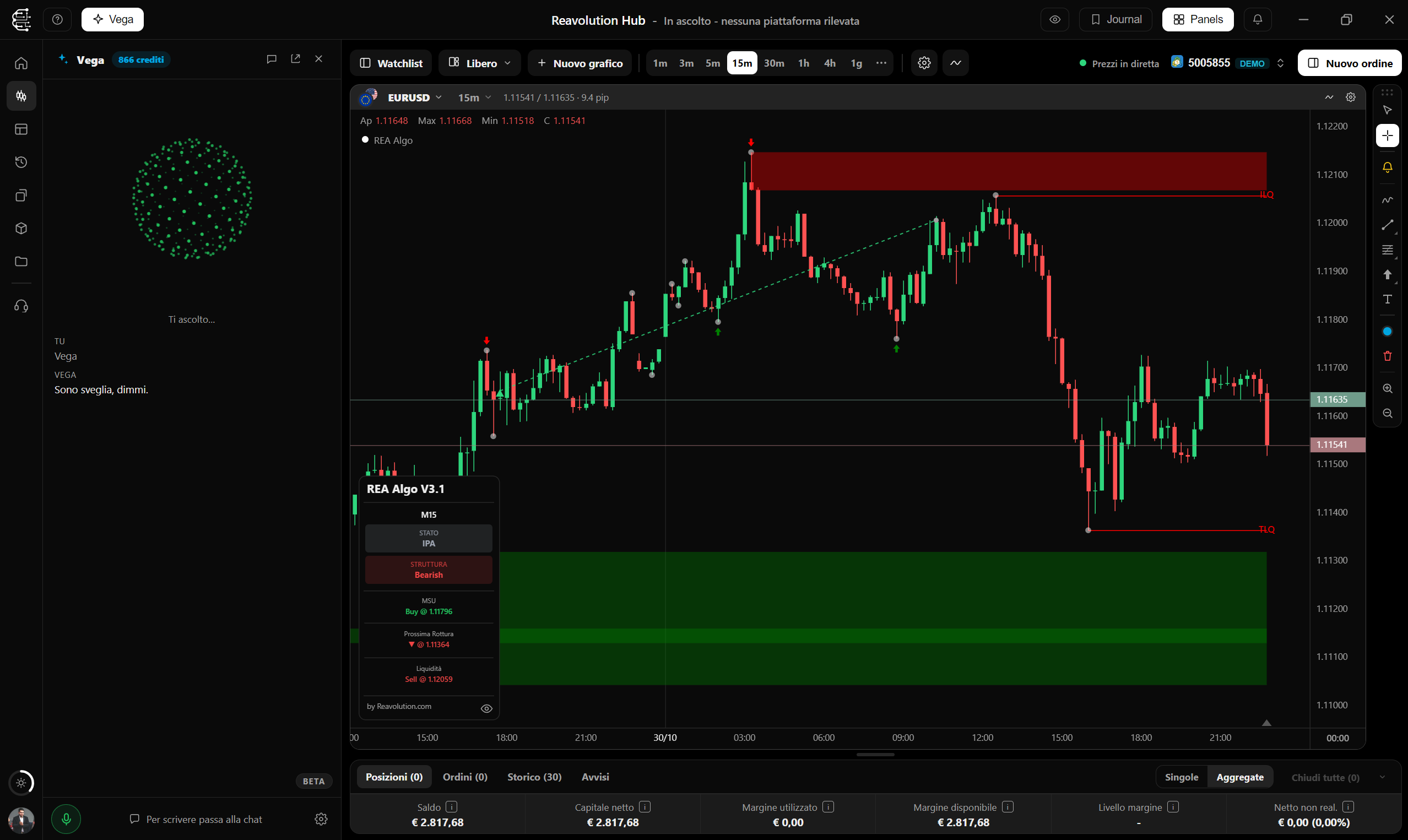
“How is my EURUSD trade doing?”, “set the chart to 4 hours”, “alert me when gold rises to 4000”. Vega answers about your trades, controls the charts and creates alerts. If you enable it, it moves your stop to break even or opens and closes trades, always after a spoken confirmation.
These are real orders, which is why there are brakes you control.
Before sending an order on a live account the Hub asks for confirmation. You can ask for it on demos too.
A maximum of lots per single order, to avoid a typing error with a volume that is too large.
By voice Vega can only read until you decide otherwise. To modify or trade you need to enable it, and every action asks for your yes.
Orders from the Trading Desk work with MetaTrader 5 and cTrader accounts (cTrader needs the updated REA Hub Bridge plugin). The account's terminal must be open.
Trading Desk is one of the Hub's tools: the others are Journal, Backtest, Vega AI, Market Analyzer, COT Flow, ETF Rotation, TradeKit, Flash News and Economic Calendar. One subscription unlocks them all.
To get started, no commitment.
To evaluate the platform at your own pace.
The balance between flexibility and savings.
For those who take trading seriously.
I'm new to the field and I got to know this world much better thanks to them. The tools are truly remarkable and simple. Whenever I was in difficulty I always received great support. Congratulations, keep it up.
I found this site by chance while trying to understand what trading was, and here I found not only the information I was looking for but also tools that help me understand the market more easily.
I'm really satisfied. Despite my little experience, they patiently helped me get into this world. Highly recommended.
Yes: orders you send from the Trading Desk reach your MetaTrader 5 or cTrader account and you see them right away in the platform's terminal. They are real trades, so it is advisable to try on a demo account first.
The Hub for Windows and the account's terminal open and connected. With cTrader you also need the REA Hub Bridge plugin, which installs from the Hub in one click; for the 3m, 10m, 20m, 2h, 3h and 8h timeframes you need the latest version.
Yes. If the account you trade from is the Copier's master account, the trades you open, modify and close from the Trading Desk are replicated on the slaves like any other.
The trades stay on your account, as always. Automatic management and price alerts only work while the Hub is open: if you close it, they stop managing anything.
Only if you enable it in the order panel's safety settings. By default Vega reads and controls charts and can modify stop and take profit; opening and closing requires a further level, and every action only runs after your spoken confirmation.
From the Journal: the account must be among the Hub's saved accounts. Closed trades appear in the History tab, with open, close, pips and net result, and as arrows on the chart.
Automatic journal with stats, equity curve and emotional analysis.
DiscoverDirectional score on 41 symbols, updated in real time.
DiscoverCFTC institutional positioning, week by week.
DiscoverSystematic monthly rotation across US sectors.
DiscoverREA indicators and utilities right on your MT5 and cTrader charts.
DiscoverThe voice and chat assistant that drives the Hub and reads your data.
DiscoverNews from 100+ sources with impact analysis.
DiscoverMacro events, alerts and an AI read of the day.
DiscoverTest your strategies on historical markets, candle by candle or tick by tick.
DiscoverRisk calculators and the extra tools only in the Hub.
DiscoverDownload the Hub, connect your account and open your first chart in minutes.
Orders from the Trading Desk are real trades: trading involves the risk of losing invested capital. The content is for information purposes and does not constitute financial advice.
Leave your details and one of our experts will contact you to find the best path for you.
We use your data to answer your request and, only if you gave consent, for promotional communications. Details in the Privacy Policy.